IPTV Not Working? Common Problems and Quick Fixes

Troubleshoot IPTV not working with quick fixes for login errors, app cache, EPG, playlist loading, weak Wi-Fi, active devices, and storage.
If IPTV is not working, start with login details, app restart, playlist refresh, EPG refresh, cache clearing, device restart, router restart, and active device checks. Most problems can be narrowed down before changing apps or assuming the account is the issue.
This iFlex IPTV guide covers common symptoms, quick fixes, when fixes may not work, and what to send WhatsApp support so your issue can be checked quickly.
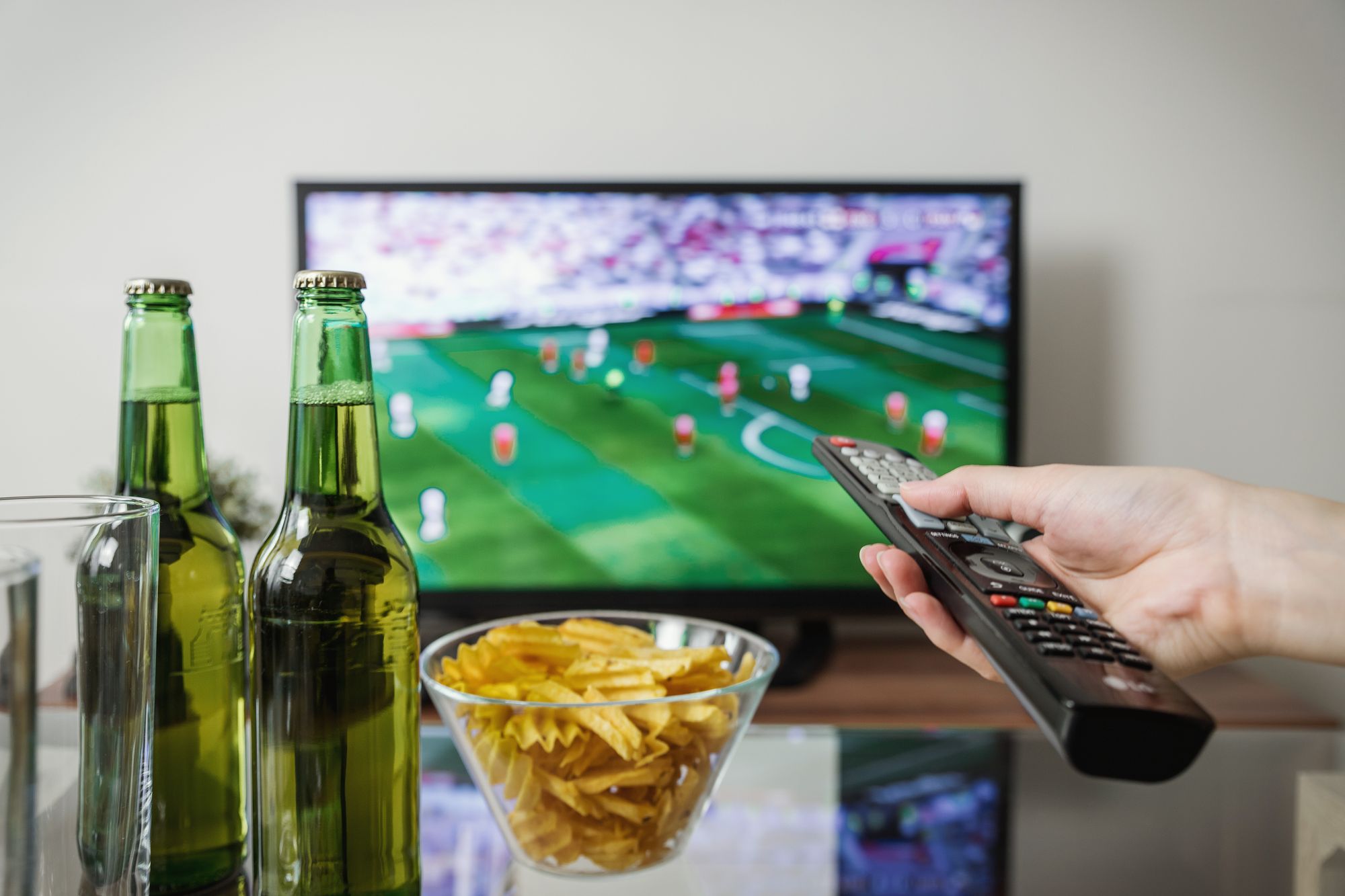
[Image placeholder: Hero image below intro. Use iptv-not-working-common-problems-quick-fixes-hero.webp, 1200x630 WebP, priority loading, generic troubleshooting streaming setup, no logos, no readable text.]
Quick Summary
| Problem | First fix |
|---|---|
| Login failed | Re-enter details exactly |
| Playlist not loading | Refresh playlist |
| EPG missing | Refresh guide |
| App crashing | Clear cache and restart |
What You Need Before Troubleshooting
| Requirement | Why it matters | Example |
|---|---|---|
| Device name | Helps identify app limits | Fire Stick, Smart TV |
| App name | Settings differ | Compatible player |
| Login method | Avoids wrong fields | M3U or Xtream Codes |
| Screenshot | Shows exact issue | Login or EPG error |
Quick Diagnosis Flow
| Symptom | Likely area | First action |
|---|---|---|
| Wrong password message | Login details | Copy fields again |
| No categories | Playlist | Refresh playlist |
| No guide | EPG | Refresh guide |
| Buffers everywhere | Network/provider | Test another device |
| Works on phone not TV | Device/app/network | Compare settings |
[Image placeholder: Diagnosis diagram after this table. Show symptom to likely cause flow with abstract icons and no readable text.]
Practical Step-by-Step Fixes
Step 1: Confirm Login Details
Check username, password, server URL, M3U, portal, or device key. Do not mix login methods.
Step 2: Restart the App
Fully close the IPTV player and reopen it. Some devices keep apps suspended in the background.
Step 3: Refresh Playlist and EPG
Refresh playlist for missing categories and EPG for missing guide data.
Step 4: Clear Cache and Restart Device
This is especially useful for Fire Stick and Android TV devices.
Step 5: Test Network and Active Devices
Test near the streaming device and confirm another screen is not already using the only active stream.
Common Problems and Fixes
| Problem | Likely cause | First fix | Support trigger |
|---|---|---|---|
| Login fails | Typo or wrong method | Re-enter details | Still fails |
| Playlist empty | App not refreshed | Refresh playlist | Empty on all devices |
| EPG blank | Guide stale | Refresh EPG | Never loads |
| App crashes | Cache/storage | Clear cache | Multiple apps fail |
Common Mistakes to Avoid
- Changing apps before checking login fields.
- Pasting M3U into Xtream Codes fields.
- Ignoring active device limits.
- Testing only on weak Wi-Fi.
- Not sending screenshots or app names to support.
When This Advice May Not Work
Fixes may not work if the account is expired, subscription details are inactive, app support changed, the device is too old, the internet is unstable, or there is a provider-side issue that support must check.
What to Send iFlex IPTV Support
- Device model.
- App name.
- Login method.
- Error screenshot.
- Internet type.
- Whether another device works.
- Whether all categories or one category is affected.
- Time the issue started.
- Active device plan.
## Device, App, Network, Provider Logic
Troubleshooting is faster when you do not treat every symptom as the same problem. If IPTV works on a phone but not the TV, investigate the TV app, TV Wi-Fi, and device storage. If it fails on every device with the same login error, investigate login details or account status. If only the guide is missing, focus on EPG settings instead of reinstalling everything.
Support teams work from evidence. A screenshot of the exact error, the app name, and whether another device works can separate five possible causes in a few minutes. Without that, support has to ask basic questions first.
Prevention Checklist
- Keep the app and device updated.
- Save login details somewhere private.
- Do not share account details across uncontrolled devices.
- Refresh playlist and EPG after activation.
- Clear cache before big events if the device is storage-limited.
- Confirm active device limits before streaming on multiple screens.
These checks are simple, but they prevent many repeat problems that look like service issues from the viewer side.
When a fix works, write down what changed. For example, if Ethernet fixes buffering, the likely cause was Wi-Fi stability. If clearing cache fixes app crashes, the likely cause was device storage or app state. Those notes help prevent the same issue from returning during the next sports event.
If no fix changes the symptom, stop repeating the same step and contact support. Reinstalling the app five times rarely helps if the real issue is active device count, wrong login method, or a provider-side check that support needs to perform.
That is why the support checklist matters. It turns a vague complaint into a clear case: what device, what app, what network, what category, what time, and what active device plan.
## Internal Links Used
| Destination | Anchor text | Placement |
|---|---|---|
| /blog/why-iptv-buffers-live-sports-fixes | live sports buffering guide | Buffering context |
| /blog/how-to-use-epg-tv-guide-with-iptv | EPG guide | EPG fix |
| /pricing | active device plan | Step 5 |
| /support | WhatsApp support | Support checklist |
Reverse Internal Linking Plan
| Source page | Section placement | Anchor text |
|---|---|---|
| /support | Troubleshooting hub | IPTV not working guide |
| /faq | Technical issues answer | common IPTV fixes |
| /blog/why-iptv-buffers-live-sports-fixes | Related issues | IPTV not working checklist |
| /features | Support block | troubleshooting guide |
Schema Recommendation
Use BlogPosting and FAQPage schema. HowTo schema can be used if the troubleshooting steps are formalized as visible HowTo steps.
Publishing Checklist
- Broad troubleshooting intent is answered.
- Diagnosis table separates symptoms.
- Support checklist is complete.
- No risky VPN or piracy language is used.
- Related sports and EPG articles are linked.
Final Takeaway
When IPTV is not working, do not guess randomly. Check login details, app state, playlist, EPG, cache, device, internet, and active device count in order. If the issue continues, iFlex IPTV support can help faster when you send exact details and screenshots.
Recommended Images & Media Plan
iptv-not-working-common-problems-quick-fixes-hero.webp
- Placement
- Below the opening answer
- Purpose
- Premium hero visual that matches the article topic
- Aspect ratio
- 1200x630
- Loading
- priority
- Alt text
- IPTV troubleshooting for iFlex IPTV setup
- Caption
- A stable IPTV setup starts with the real device, app, and internet connection.
- Image type
- AI-generated WebP hero
- File size target
- Under 150 KB
Cinematic dark premium streaming setup for IPTV troubleshooting, modern TV and devices, subtle sports-night energy, no readable text, no real brand logos, no channel logos, no sports league logos, no copyrighted characters, no real movie posters, no recognizable scenes, no identifiable faces, no piracy cues, generic placeholder UI only
iptv-not-working-common-problems-quick-fixes-flow-diagram.webp
- Placement
- After the main explanation section
- Purpose
- Explain setup, diagnosis, or decision flow
- Aspect ratio
- 1200x675
- Loading
- lazy
- Alt text
- IPTV troubleshooting process diagram
- Caption
- Use the flow from device to app to network before changing plans or hardware.
- Image type
- AI-generated educational diagram
- File size target
- Under 200 KB
Clean technical diagram showing IPTV troubleshooting flow with abstract icons and no readable labels, no readable text, no real brand logos, no channel logos, no sports league logos, no copyrighted characters, no real movie posters, no recognizable scenes, no identifiable faces, no piracy cues, generic placeholder UI only
iptv-not-working-common-problems-quick-fixes-screenshot-placeholder.webp
- Placement
- Inside the practical steps section
- Purpose
- Show where a real screenshot should be captured during setup or troubleshooting
- Aspect ratio
- 1200x675
- Loading
- lazy
- Alt text
- IPTV troubleshooting screenshot placeholder
- Caption
- Use only real screenshots from your own app/device, never fake app screens.
- Image type
- Screenshot placeholder instruction
- File size target
- Under 200 KB
Capture real error, playlist refresh, or EPG screens. Blur login details and do not invent error screens.
iptv-not-working-common-problems-quick-fixes-checklist.webp
- Placement
- Before the support or final takeaway section
- Purpose
- Summarize the actions a user should complete
- Aspect ratio
- 1200x675
- Loading
- lazy
- Alt text
- IPTV troubleshooting checklist visual
- Caption
- A short checklist helps prevent setup issues before live sports or long viewing sessions.
- Image type
- AI-generated checklist graphic
- File size target
- Under 200 KB
Premium dark checklist-style visual for IPTV troubleshooting, abstract check marks only, no readable words, no readable text, no real brand logos, no channel logos, no sports league logos, no copyrighted characters, no real movie posters, no recognizable scenes, no identifiable faces, no piracy cues, generic placeholder UI only
FAQs
Why is my IPTV not loading?
The app may need a playlist refresh, login details may be wrong, or the connection/device may be unstable.
Why does IPTV say login failed?
Login failure often comes from typos, wrong fields, or using the wrong login method for the app.
Why is EPG missing?
The guide may need refreshing or the app may not have loaded EPG data yet.
Should I reinstall the app?
Try restart, cache clear, playlist refresh, and EPG refresh before reinstalling.
Why does IPTV work on one device but not another?
The second device may have a different app, weaker Wi-Fi, low storage, or an active device issue.
What should I send support?
Send device, app, login method, screenshot, internet type, affected categories, time, and active device plan.
Need help with this setup?
Message iFlex IPTV support with your device, app, internet speed, and the article topic you are following.
Message Support